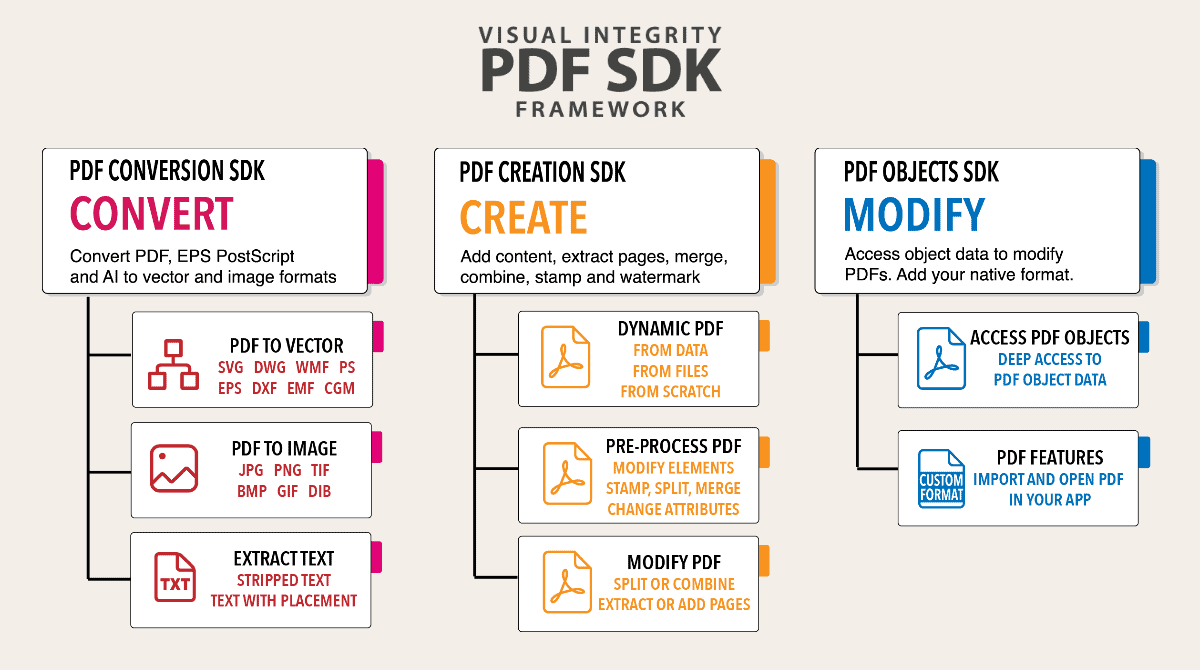
When a CAD drawing is saved or exported as a PDF file, it includes rich data about every object and every character. This is known as a vector PDF file. With these files, Visual Integrity software can be used to extract all of that information and render it as an editable drawing for use in CAD programs, Microsoft Visio or other drawing, illustration or presentation programs. Our software includes many special options which allow fine-tuning of the results or even compensation for information lost in the transition to PDF. For example, you can reconnect objects, separate layers and consolidate characters into words or lines.

Two things to watch out for when converting PDF are scanned PDF drawings and text issues.

Scanned Drawings – When a drawing is scanned and saved as PDF, our software will not create an editable drawing. It is a raster PDF file. The reason for this is that when the drawing was scanned, it was reduced to a flat image, like a photocopy or snapshot. Any information about the objects, lines and text is lost and there is nothing to to extract. The best conversion in this case, will be a DXF or WMF file containing the flat image which can then be used as a tracing layer. Other options include searching down a solution which will electronically “trace” the drawing (Google “raster to vector”) or using a service bureau to manually redraw it.

Test Issues – Sometimes, text will not convert. This is because the characters were not saved in the PDF file as characters. Instead, they were “plotted” as pen strokes. While an “E” looks like an “E” on screen, it is actually one vertical line and three horizontal lines. Once the character definition is lost in the PDF file, it can not be extracted. In this case, in order to edit the text, you can use what’s there as a guide to add new text to the fie and delete the graphical text. An easy way to know if you will get editable text during the conversion is to open the PDF file and try to select the text on screen. If you can select it, it will convert. If you can not select it, it just looks like text but is really a graphical object.


DXF

When a CAD drawing is saved as a PDF file, it still retains information about layers that can be extracted. When converting, pdf2cad looks at color attributes, or other definitions in the PDF file, to create layers. If the option to recognize layers is turned on, pdf2cad gathers all objects with same color and put them on one layer. If the PDF file has three colors, the resulting DXF file will have three layers. It is then easy in AutoCAD to turn off a complete layer. This setting can be found in the Options->DXF tab of PDF FLY or simply under Options in pdf2cad.

There are two basic formats for graphics – vector and image. Vector graphics are made up of objects, lines, curves and text while images are made up of a collection of dots or pixels. Images are also referred to as bitmaps or rasters.

Visual Integrity can convert most PDF files into either vector or image formats. It’s important to know which is best for the job you are doing.

If you need to break a PDF file down into objects and text for editing, then you want to choose a vector format. The vector formats supported in our software are DXF, PDF, PS, EPS, SVG, WMF, EMF, CGM, HPGL and MIF.

If you do not need to edit the file and simply want a sharp copy to insert into a document or to publish on a web-site, you’ll want to go with image formats. The image formats that we support are TIFF, GIF, PNG, JPEG and BMP. If you will be printing the graphic on a laser or ink-jet printer, convert at 150 or 300 dpi (dots per inch) resolution. If publishing to a web-site, use 96 or 72 dpi is best for screen display. Keep in mind that the higher the dpi (resolution), the larger the file size. It’s best to use the lowest resolution which achieves the level of quality you want.

Note! Scanned images can not be transformed by vector mode into lines, text and other vector objects because they are not vector source files. Instead, you will get an exact replica of the PDF as an image that can be used as a tracing layer which aids in the duplication effort. To convert scanned images into vector objects, you need a special class of software called “raster to vector”.

The DXF file format does not define physical dimensions using absolute measurements from a ruler. Instead it uses units which the user defines. When you create a PDF file from a CAD drawing, it is transformed to paper/print dimensions and the meaning of the original CAD units are lost but the xy relationship remains. As a result, pdf2cad can not restore the intended dimensions but it does preserve the scale. This means that you can calculate a scaling factor to apply during the conversion to achieve the size drawing you want. By default, pdf2cad uses 1mm(0,03937 inch) in the PDF = 1 unit in the DXF. You can change this under the DXF Options tab. You can also scale the DXF after import into your CAD application.

Tip: Sometimes pdf2cad delivers better precision and more accurate coordinates if you change one of the values in your pdf2cad.ini file. Please try setting the ctm_scale to 10.0 instead of 1.0 (default) in the pdf2cad.ini file. If this does not help, please send us the file to diagnose.

If the PDF file contains characters, pdf2cad will convert them and map them as MTEXT objects in the DXF file. Unfortunately, when creating a PDF file from a CAD drawing, the text is not always retained. Sometimes it is “plotted” as pen strokes or turned into curves. When this happens, the character definition is lost. There is nothing that pdf2cad can do about this – it can only reproduce the curves (=SPLINES entities) in the DXF file. What looks like text in the original file may actually just be an object, comprised of a series of pen strokes that looks like a letter.

Tip: to see if the text in your PDF drawing is live and searchable, open the PDF file in Acrobat (Reader) and use the Text Select tool. If you cannot highlight any words, the text is already outlined to curves. If a PDF file contains searchable text, pdf2cad will reproduce it as MTEXT in the DXF file, preserving the fonts and styles.
Tip: To create a PDF with searchable text from AutoCAD, make sure to use TrueType fonts in the drawing and ensure that your printer driver is set to retain text as text instead of converting it to curves.  Text can be lost in either of these two steps in creating a PDF file. See how to create a PDF file with searchable text from CAD Digest.
Tip: if your PDF files contain non-Roman font text (such as Chinese, Arabic or Cyrillic), or if the text looks garbled in the DXF output, try using the “Convert characters to curves” option in the General tab of the Options menu of pdf2cad. This outlines the text during conversion to ensure WYSIWYG rendering (not editable).

When you see a width dimension or what look like very fat lines in the drawing, you need to adjust the line width setting. It’s possible to turn off (reduce to zero) the line weight on the DXF Options tab or via Command Line. Change the value of the function zero_linewidth from 0 to 1 in the pdf2cad.ini, which is in the installation directory of pdf2cad and rerun the conversion. The installation directoryby default is C:\Program Files\Visual Integrity\pdf2cad.

When the PDF file was created, the dashed lines were created as small individual line segments. Because of this attribute in the PDF file, pdf2cad converts them as small line segments in the DXF file. pdf2cad does not yet have an option to recognize these segments. as a line with a certain dashed-line attribute.